
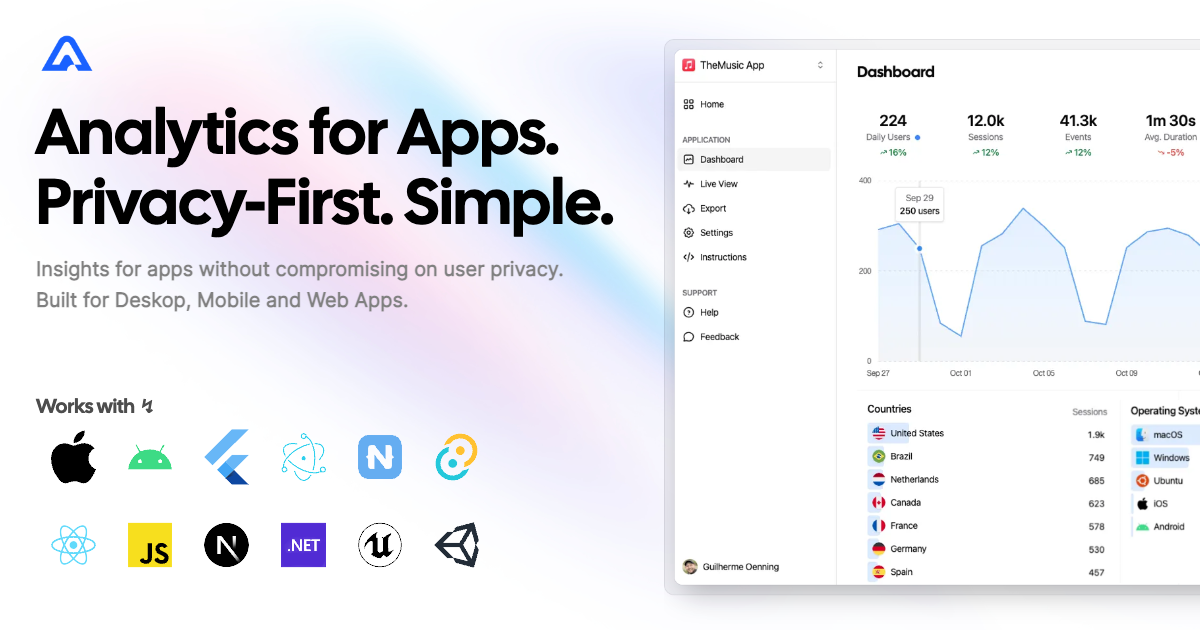


Instrument your apps with Aptabase, an Open Source, Privacy-First and Simple Analytics for Mobile, Desktop and Web Apps.
Add the following lines to your Package.swift file:
let package = Package(
    ...
    dependencies: [
        ...
        .package(name: "Aptabase", url: "https://github.com/aptabase/aptabase-swift.git", from: "0.4.0"),
    ],
    targets: [
        .target(
            name: "MyApp",
            dependencies: ["Aptabase"] // Add as a dependency
        )
    ]
)Use this guide to add aptabase-swift to your project. Use https://github.com/aptabase/aptabase-swift for the URL when Xcode asks.
Aptabase is also available through CocoaPods. To install it, simply add the following line to your Podfile:
pod 'Aptabase', :git => 'https://github.com/aptabase/aptabase-swift.git', :tag => '0.4.0'If you're targeting macOS, you must first enable the
Outgoing Connections (Client)checkbox under theApp Sandboxsection.
First, you need to get your App Key from Aptabase, you can find it in the Instructions menu on the left side menu.
Initialized the SDK as early as possible in your app, for example:
import SwiftUI
import Aptabase

@main
struct ExampleApp: App {
    init() {
        Aptabase.shared.initialize(appKey: "<YOUR_APP_KEY>") // 👈 this is where you enter your App Key
    }

    var body: some Scene {
        WindowGroup {
            MainView()
        }
    }
}
You can also pass options to customize behavior:
Aptabase.shared.initialize(appKey: "<YOUR_APP_KEY>", with: InitOptions(
    host: "https://your-self-hosted-instance.com",  // For self-hosted Aptabase
    flushInterval: 30,                               // Custom flush interval in seconds
    trackingMode: .asRelease,                         // Force release mode
    appVersion: "2.0.0"                               // Override the app version
))host— Custom server URL for self-hosted Aptabase instances (required forA-SH-*app keys)flushInterval— Interval in seconds for batching and sending events (default: automatic)trackingMode—.readFromEnvironment(default),.asDebug, or.asReleaseappVersion— Override the app version reported with events (default: read from app bundle)
Afterward, you can start tracking events with trackEvent:
Delivery starts when the SDK is initialized, including in macOS app extensions that do not receive application activation notifications. Initialize on the main thread so the delivery timer uses the main run loop. The configured flush interval also controls retries after transient failures. Events remain in memory, so an extension terminated before delivery can lose pending events.
import Aptabase

Aptabase.shared.trackEvent("app_started") // An event with no properties
Aptabase.shared.trackEvent("screen_view", with: ["name": "Settings"]) // An event with a custom property
A few important notes:
- The SDK will automatically enhance the event with some useful information, like the OS, the app version, and other things.
- You're in control of what gets sent to Aptabase. This SDK does not automatically track any events, you need to call
trackEventmanually.- Because of this, it's generally recommended to at least track an event at startup
- The
trackEventfunction is a non-blocking operation as it runs in the background. - Only strings and numbers values are allowed on custom properties
Error reporting is in beta. Reports appear on the
Errorspage of your Aptabase dashboard.
Use trackError to report errors you've caught and handled:
import Aptabase

do {
    try someFailingFunction()
} catch {
    Aptabase.shared.trackError(error) // severity: error
}
For errors your app can't recover from, mark the report as fatal:
Aptabase.shared.trackError(error, fatal: true) // severity: fatalA few important notes about error reporting:
- Each report includes the error type, message, stack trace, severity (
errororfatal) and how it was captured (handled, orcrashwhenfatalis set). Swift errors are reported under their type name with their description; errors from Apple frameworks (NSError,URLError,CocoaError) are grouped by domain and code, for exampleNSURLErrorDomain -1009. - The stack trace is captured where
trackErroris called, since Swift errors carry no stack of their own. The SDK's own frames are removed so the first frame is your call site. - Reports are sent immediately and kept in memory for retry when the network is unavailable (up to 25 pending reports). They are not persisted to disk, so a report may be lost if the app terminates right after
trackErrorreturns. - Fields longer than the server accepts (for example a 10,000 character stack trace) are truncated rather than rejected.
- Errors count against a separate monthly error quota. When the quota is exhausted, the server rejects new reports until it resets.
- Uncaught exceptions and crashes are not reported automatically yet. Call
trackErrorfrom your own error handling.
When submitting your app to the Apple App Store, you'll need to fill out the App Privacy form. You can find all the answers on our How to fill out the Apple App Privacy when using Aptabase guide.
For AI/LLM integration instructions, see llms.txt