Repository navigation
Getting started
Before you can chat with Misty, find documents, or start a recording, link your Discord account to your UTMIST member record. You only need to do this once for the Misty bot you are using.
Have the email address on your member record ready, and make sure you can open its inbox. If you do not know which email is on your record, ask an exec or Misty admin.
flowchart TD
    accTitle: Link your Discord account
    accDescr: Request a code for your existing member email, read the email, confirm the code in Discord, then check your profile.
    A["Request a code with /link"] --> B["Read the code in your email"]
    B --> C["Enter it with /verify-code"]
    C --> D["Check your profile with /whoami"]
    classDef step fill:#eef2ff,stroke:#4567ee,color:#19233f;
    class A,B,C,D step;
- Open a text channel in a server where Misty is available.
- Type
/linkand choose Misty's command. In theemailfield, enter the email address on your member record, then send the command. - Misty tells you that it has emailed a code. Open that inbox and find the six-digit code.
- Return to Discord using the same account. Choose
/verify-code, enter the code in thecodefield, and send it.
For example, the first command will look like this after you fill it in:
/link email:you@example.com
When linking succeeds, Misty confirms the name of the person you are linked as. Your link also works in other servers using the same Misty bot.
If Misty cannot find the email, ask an exec to add your member record before
trying again. If the code expires, run /link again to request a new one.
Enter the code through /verify-code; keep it out of ordinary messages.
- Run
/whoami. - Check the name, primary email, and linked Discord identity in the reply.
- Run
/my-teamsto see the teams you belong to.
Both replies are visible only to you. If your profile or memberships are incorrect, contact a Misty admin with the correction you need.
Here is an illustrated /whoami reply for a fictional member:
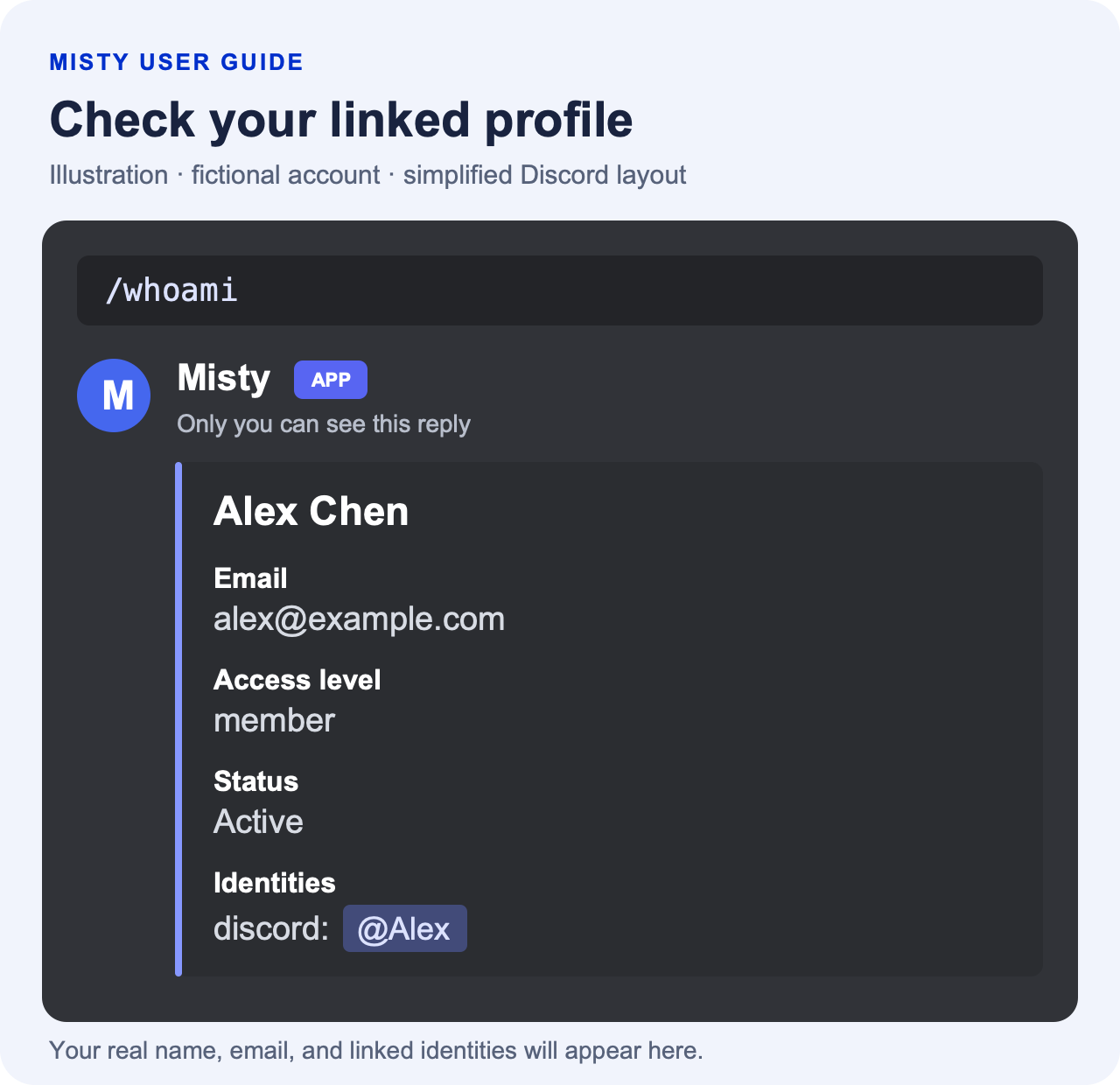
Read the example as text
You run: /whoami
Misty — visible only to you
Alex Chen
Email: alex@example.com
Access level: member
Status: Active
Identities: discord: @Alex
Check that the profile belongs to you. Use /my-teams separately to view
memberships; they are not shown in this profile card.
Next, read Teams to check your memberships and understand how they connect to Google access. You can also talk to Misty, find a document, or record a meeting.
You may use one email for UTMIST and another for Google Drive. Adding the second address helps Misty recognize documents shared with that address. You must already be linked before doing this.
- Choose
/add-emailand enter the additional address in theemailfield. - Open that email's inbox and find the verification code.
- Choose
/verify-email, enter the code, and send the command. - Wait for Misty to confirm that the address has been added.
This adds another verified address to your account. Your primary email stays the same. When managed Google Groups is enabled, Misty also schedules updates to add that address to your current teams' Groups. File owners must still share their files with your address or the appropriate Group. See Use your team's Google files.
For this task, finish with /verify-email. /verify-code is used for the
initial Discord link. If the additional-email code expires, start again
with /add-email. If Misty says the email belongs to another member, ask an
admin to help resolve the account records.
Example: your Google files use another email
Alex linked Discord using alex@example.com, but the robotics folder is
shared with alex.drive@example.com. Alex runs:
/add-email email:alex.drive@example.com
Alex opens that inbox, then enters its code in /verify-email. Misty
confirms that the address was added. Alex can then try /doc search again
once Misty has processed the source's sharing. The folder must already be
shared with Alex's Google account.
Your /whoami reply includes an access level. Members can use the
everyday features in this guide. The team and settings changes in the
administrator guide
require admin or superuser access.
A Discord server role, a team role such as lead, or a team's admin flag
does not automatically give you Misty administrator access. If a task is
refused, check /whoami and ask a Misty admin for help.
You can still use /help and /bug before linking. Recording status,
stopping a recording, and live Q&A also work without a linked account,
subject to the meeting channel rules.